
I’ll begin by saying that I am not an Accessible Document Specialist by any means. The web is my area of expertise, and I try to stay in my lane. But I was recently involved in a project with a state government agency where it was a primary component due to the DOJ’s so-called “Final Rule” regarding government accessibility. I think I can speak for everyone in my profession when we say we despise PDF’s for their inaccessibility. While tools like Allyant’s excellent CommonLook products make the process of remediating them much easier, it’s still time consuming and tedious.
Whatever format the document was created in – whether it be Word, Excel, or PowerPoint, it is best left as is. Not just because those native formats are more accessible, but also because it’s easier for authors and stakeholder to make and track changes, including accessibility ones. So what about those digital reams of existing PDF’s you have? My advice is to stop using them. Typically by finding the original, remediating that if necessary, and dumping the PDF entirely. I can almost guarantee you that not only will the original have less accessibility issues than the PDF, but it will be much easier to fix those it does have.
I know what you’re going to ask next:
“But what if I don’t have the original, only the PDF?”
If it’s at all practicable, I *highly* recommend you convert it to HTML, particularly if it’s a high traffic or a forms page. HTML is the only format in which you can make a form truly accessible. But assuming it’s just text, tables, and images like most documents, you’re probably OK just converting it to Word, Excel, etc. For demonstration purposes I pulled a document in PDF form from the Washington State DMV website – Print a License Document. When I opened up the document in Acrobat and ran the accessibility report, it flagged no errors, just the usual warnings about checking color contrast and reading order manually.
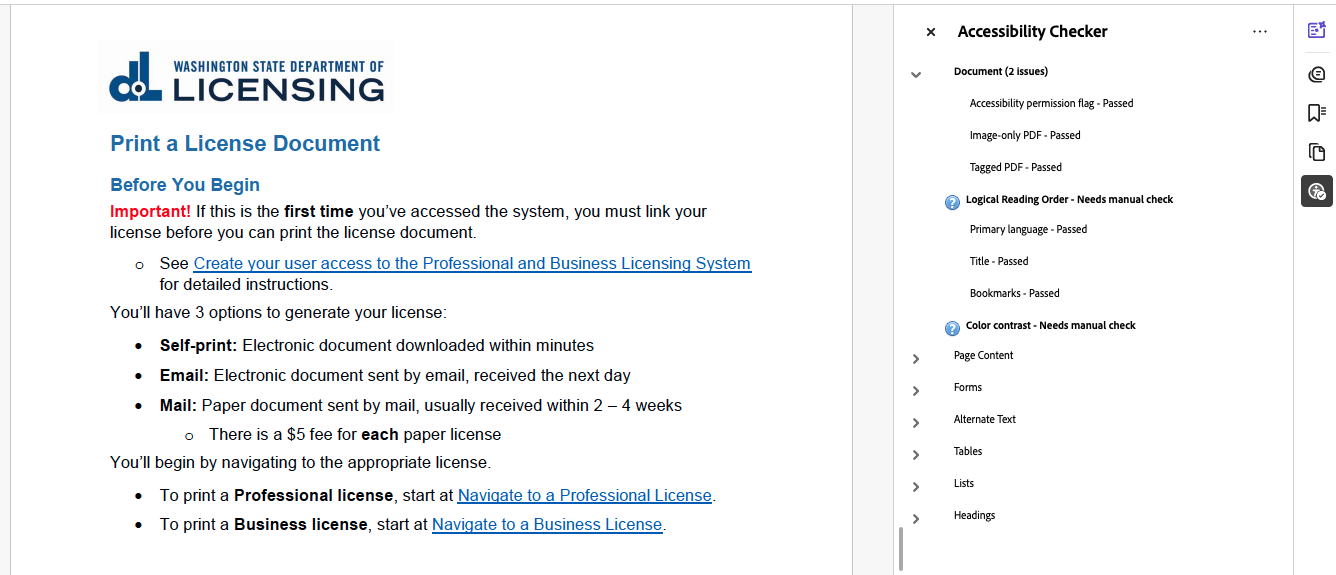
But when I open the PDF in Word, it’s a different story. Word flagged both a color contrast issue, and an instance of missing alt text:
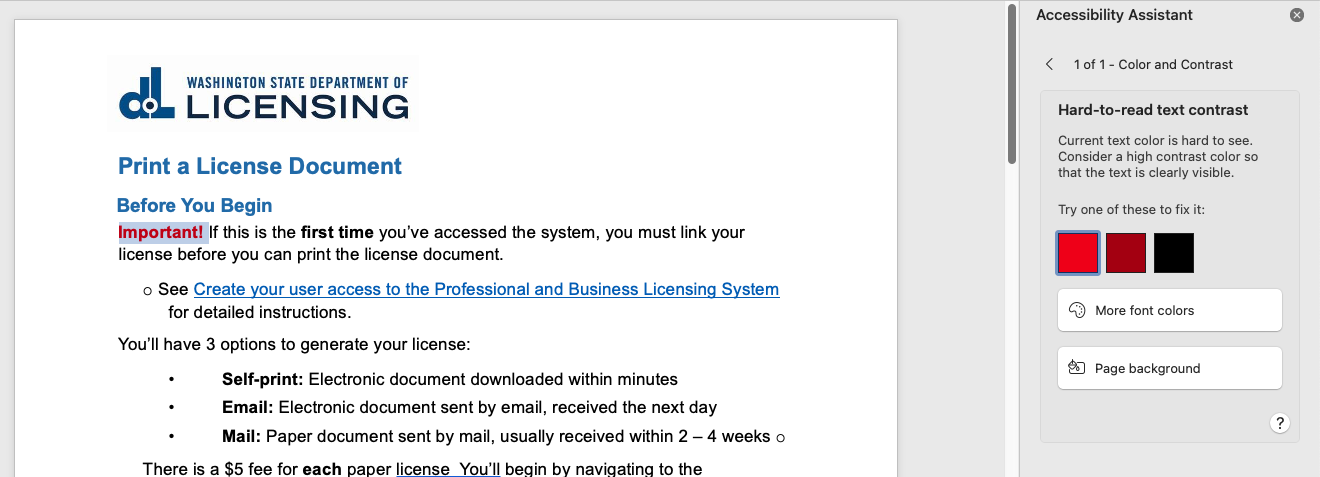
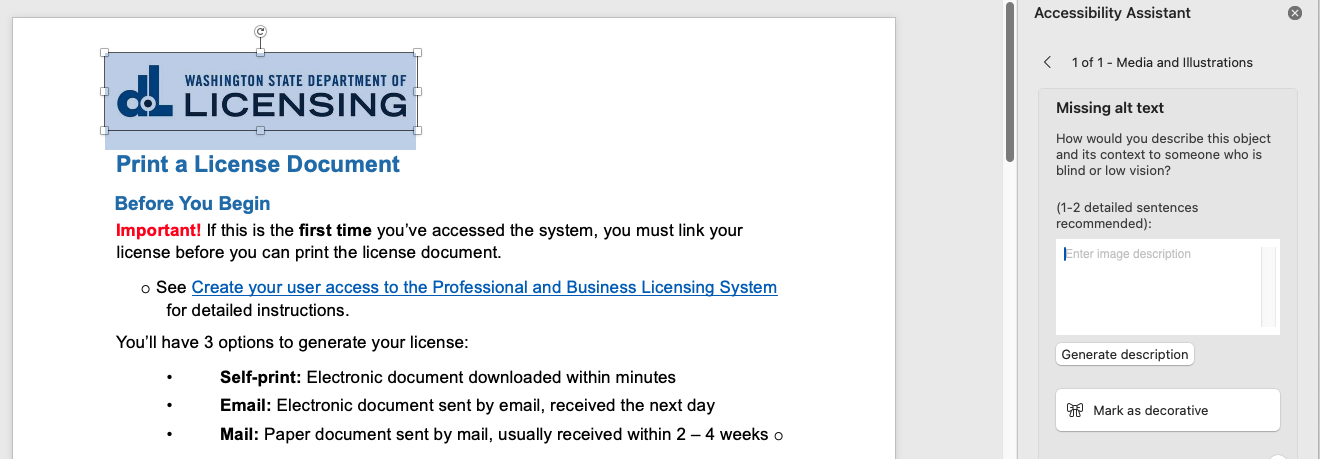
So not only do PDF’s suck, but the Accessibility Checker in Acrobat sucks too. In Word, I can change the format of elements simply by clicking on them (such as making an H1 an H2). And I know the reading order is correct, because I can see (or hear) it right in front of me. Mac users like myself can’t even listen to a PDF document with VoiceOver. The only way a blind Mac user can read a PDF is to use Adobe’s “Read Aloud” feature, which is very limited. Worse yet, iOS users can’t read PDF’s at all, unless they change the default program for opening them in their settings. And that’s assuming your users know they need to and how to do so. Statistically, about 60% of internet traffic is now mobile, and a whopping 71% of blind people use iPhones.
Not so with Word. Word documents are accessible to screen reader users regardless of platform. And as a bonus, Microsoft’s built in Accessibility Assistant not only flags color contrast violations, but it also suggests alternate ones which are compliant, and you can select one with the press of a button. How cool is that? It takes me all of a minute to make those couple of changes and save it as a Word doc with the title of “Print-License-508.docx” rather than “Print-License.pdf”. Then I can simply change any links to the file within my site using find and replace. Voila. Here is the remediated Word version of our document.
The only instance I can think of where you might want to just remediate the PDF’s is if you have a ton of documents and more money than time. If that’s the case, I would suggest you just send all of them Allyant’s way and have them do it for you. Their pricing is VERY reasonable considering how much time it takes to do it yourself.