
Accessibility is not rocket science. 90% of it is about using the right HTML elements in the right order. The vast majority of issues we see arise when people use things like <div>s for actionable elements rather than links or buttons, or <span>s instead of <label>s in forms.
A reader wrote in with some questions regarding page structure, specifically with regards to HTML5 regions. There are a lot of articles out there which describe the purpose of various elements such as <main>, <header>, <section>, etc., but I haven’t been able to find anything that shows how to put them all together in practice.
For the purposes of this article, we’ll create a mock news site, as such sites typically contain all of the common building blocks. As a baseline, we looked at two of the most popular ones in the U.S. – CNN and Fox News. While neither was atrocious, both had issues. Here are a few:
CNN
- No first level heading (H1)
- A <main> within <main>
- A <nav> within <nav>
- No skip link
- No <article> or <section> elements
Fox News
- Multiple <main> elements
- No skip link
- Multiple <nav> elements without labels
- Heading levels go from H1 to H4, then to H3 with no H2’s whatsoever
- Inconsistent navigation from page to page
Neither site made use of <section> elements, and CNN doesn’t use <article> elements (Fox does).
Skip links (bypass blocks)
While there is no hard and fast rule, if your main navigation contains five or more links, you should include a “skip link” which allows users to bypass them and get to the content. I can’t tell you how many times I’ve stumbled upon a “mega menu” with dozens of links a user needs to tab through in order to get to the meat of the page. Creating a skip link is easy. You simply create a link as the very first element on the page after the opening <body> tag:
<body>
<a href=”#main”>Skip to main content</a>
…
<main id=”main” tabindex=”-1”>
…
</main>
The skip link can be visible at all times, or hidden with CSS until it receives keyboard focus. Note that the <main> element needs a tabindex=”-1” attribute in order for it to receive keyboard focus when a user activated the link.
Regions (Info and Relationships / Bypass Blocks)
Like skip links, regions allow users to navigate a page using keyboard shortcuts. They also help screen reader users understand where they are on a page in relation to other elements.
The primary regions nearly every site should contain are:
Header <header>
You can have as many <header> elements as you want on a page, but we typically recommend only one. Generally speaking, this will contain things such as your logo, site search, and main navigation.
Search <search>
Contains your search field and submit button.
Navigation <nav>
Like the header element, you can have multiple <nav> elements for things such as pagination or footer navigation. If you use more than one, we recommend the use of ARIA labels to identify the purpose of each.
Examples:
<nav aria-label=”main navigation”>

<nav aria-label=”pagination”>

<nav aria-label=”services menu”>
Main <main>
While the <header> and <footer> elements typically contain content which is consistent and present on every page, the main element contains each page’s unique content, such as a photo gallery, a list and description of your company’s services, etc. A page should only have one <main> element.
Footer <footer>
This one is pretty self-explanatory; it’s typically the last thing on your page and contains such things as a copyright, and may contain links to such things as an accessibility statement or contact info. Like headers, you may include more than one <footer>, but I’ve never found a good reason to do so.
Aside <aside>
This region will typically contain such things as advertising, social media posts, and the like. Visually, it’s typically represented as a sidebar, and follows your main content in the reading order.
Section <section>
As the name implies, <section> elements are used to break parts of a page into more well-defined chunks. In our news site, we can use them to break up our articles by topic. When doing so, it’s best to label each section using either an ARIA label, or an ARIA labelledby attribute with a corresponding heading.
Examples:
<section aria-labelledby=”s1”>
<h2 id=”s1”>Top Stories</h2>
…
</section>

<section aria-labelledby=”s2”>
<h2 id=”s1”>Sports</h2>
…
</section>
Article <article>
This is probably the most improperly used region. The <article> tag specifies independent, self-contained content. An article should make sense on its own and it should be possible to distribute it independently from the rest of the site.
Potential sources for the <article> element:
- Forum post
- Blog post
- News story
It should not be used to contain an excerpt or a “snippet” of an article.
Since our sample page doesn’t include any full news articles (only excerpts), it doesn’t have any <article> elements.
ARIA Landmarks
If your authoring environment doesn’t allow for the use of HTML5 regions (such as a CMS), you can also use ARIA landmarks to define your elements’ purpose.
Example:
<div role=”main”>
More information on that can be found in this article: Using ARIA landmarks to identify regions of a page
Headings (H1-H6)
Like regions, headings allow screen reader users to determine the importance and order of things on a page.
Basic rules for headings:
- Each page should contain one, and only one <h1> tag which describes the primary purpose of that page. For example: <h1>Our Services</h1>. Contrary to common belief, your <h1> tag does not need to be the first heading on a page. In many cases, you may have a lower level heading such as an <h2> before your <h1> for an important notification, or a sub-section of your main navigation.
- Don’t skip heading levels.It’s acceptable to do this:
H1 > H2 > H3
or this:
H2 > H1 > H2
But not this:
H1 > H3 > H4
or this:
H2 > H2 > H4
When we put it all together, here’s how our example news site looks visually with some basic styling:
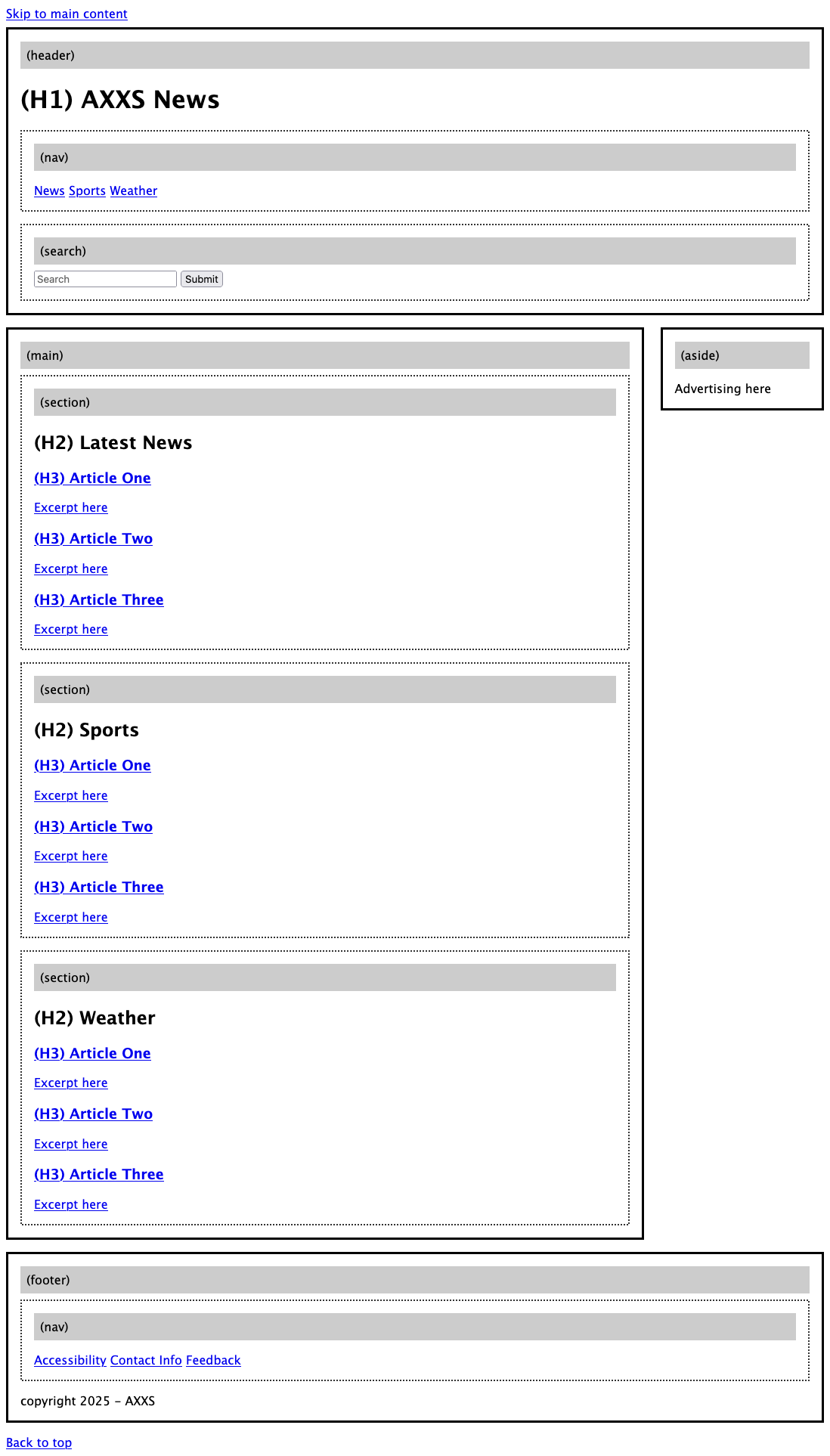
And here it is in code form with all of our elements in place: Accessible web page template
Please feel free to use it as a starting point for your site.